
Photo to pixel art
Image to Pixel Art
Turn a photo into a pixel avatar, an 8-bit landscape or a retro game scene. Upload your image, choose a style and keep the details that make it yours.
Photo to Pixel Art: Before and After
Four results generated with the same Standard model available in the editor. Move the divider to compare each original with its pixel-style output, then open the exact prompt or try the source image yourself.
The source images are bundled AI-generated demo images. Each result is one recorded run, with no manual retouching; a new run can differ. Pixel size and palette are style instructions, not fixed export settings.
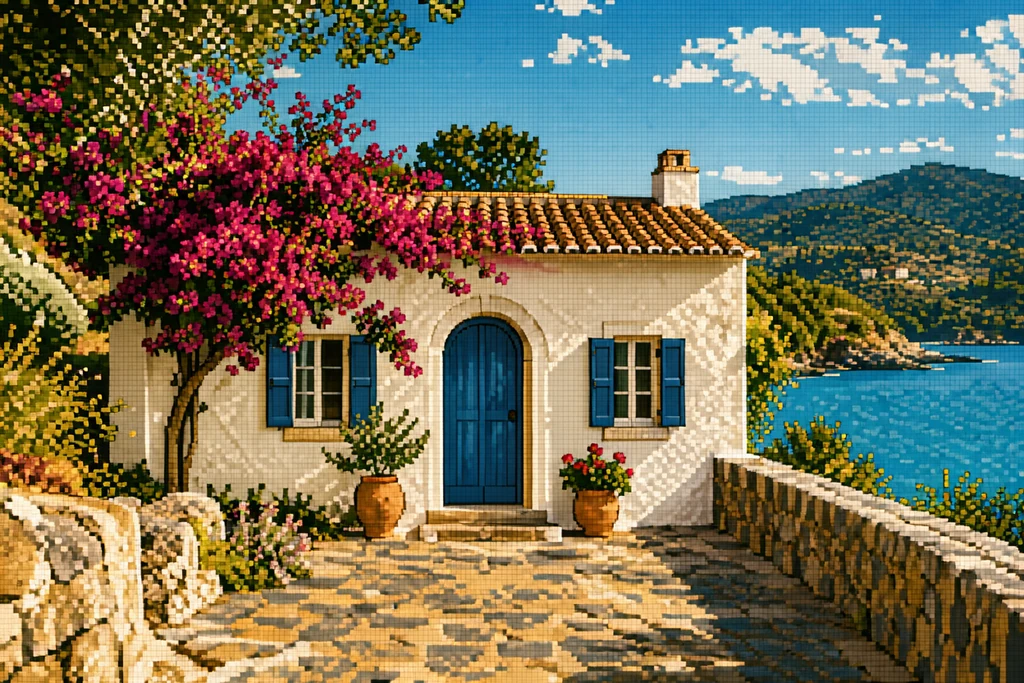
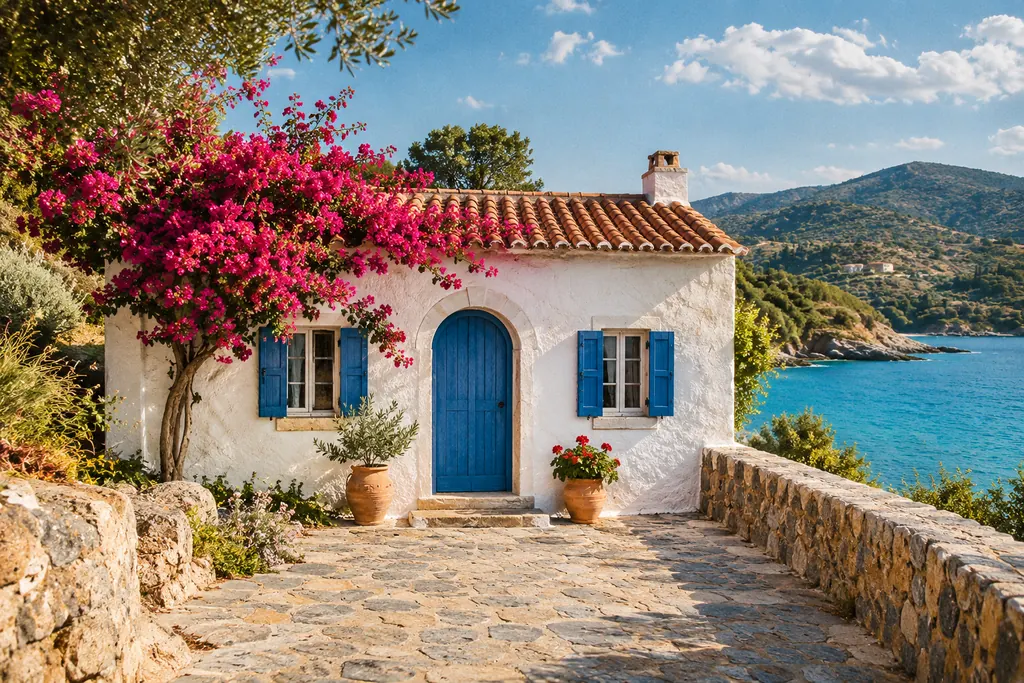
Coastal photo to 8-bit-style landscape
Standard · 1K · Generated 2026-11-09
View generation prompt
Convert this coastal house photo into 8-bit pixel art. Preserve the white house, blue arched door, blue shutters, magenta bougainvillea, stone path, sea, mountains and original camera angle. Redraw the entire image on a coarse, consistent square pixel grid with a limited 16-color palette, hard stepped edges, flat color clusters and sparse dithering. Make it look like a vintage adventure game background. No smooth gradients, anti-aliasing, blur, text, UI or watermark.
The blue door, white house, flowers and coastline remain recognizable. The model rebuilds them as square color clusters; the output is more detailed than a strict 16-color game asset.
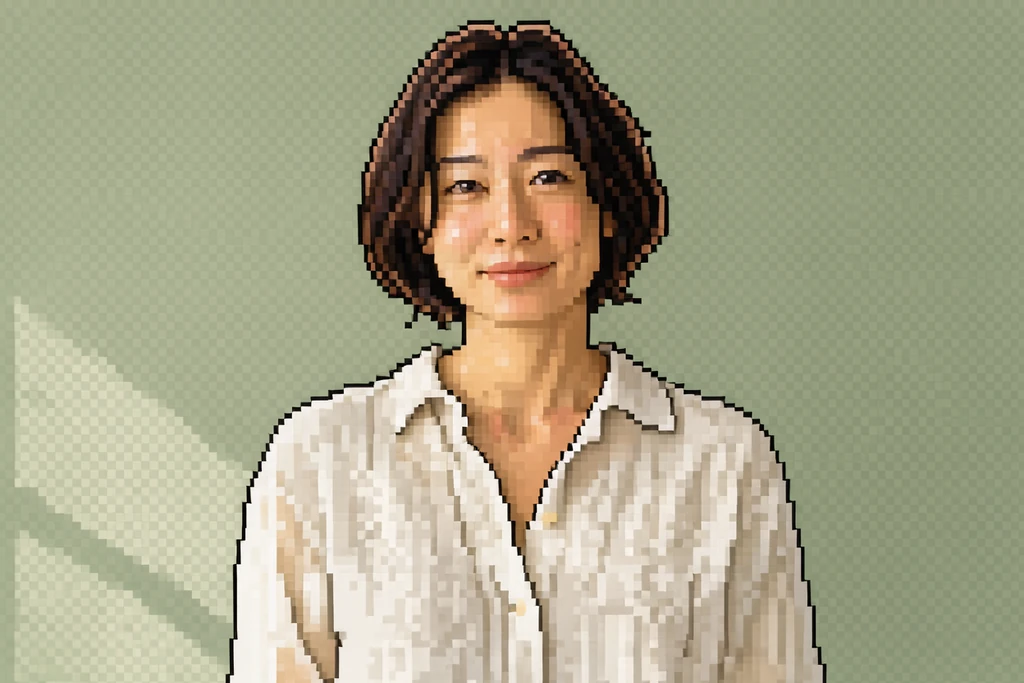
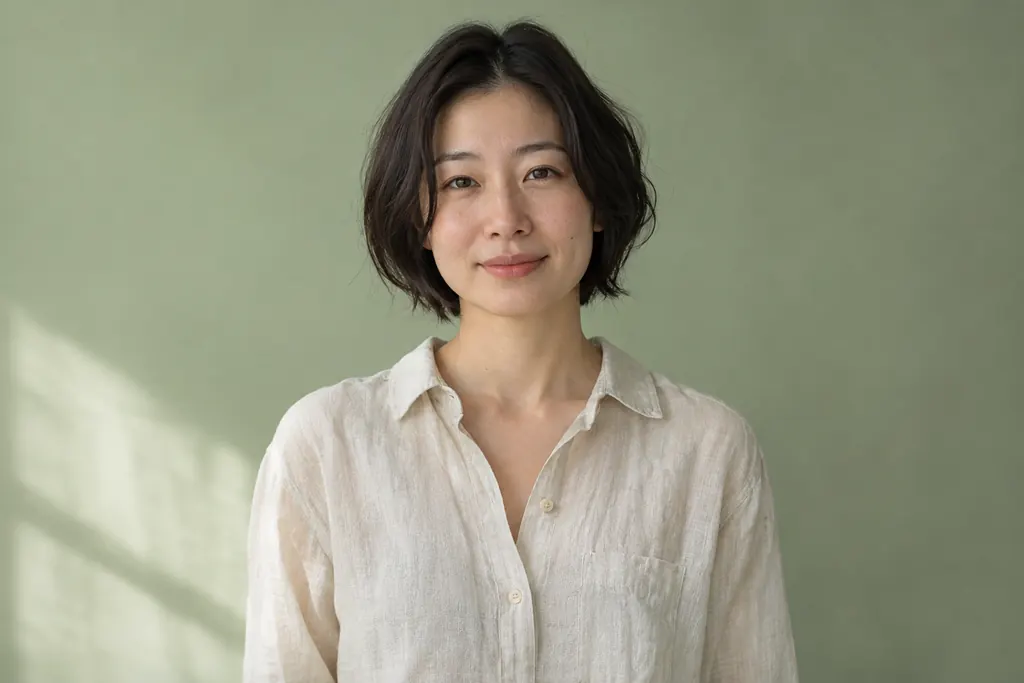
Portrait to pixel avatar
Standard · 1K · Generated 2026-11-09
View generation prompt
Convert this portrait photo into pixel art suitable for an avatar. Preserve the person's facial features, short dark hair, cream linen shirt, gentle expression, shoulder-up framing and sage green background. Redraw everything using a consistent coarse square pixel grid, crisp stair-step outlines, a limited 24-color palette and flat clusters of color with minimal dithering. Keep the person recognizable. No photorealistic texture, smooth shading, anti-aliasing, blur, text or watermark.
The short hair, cream shirt and sage backdrop carry into the pixel portrait. Facial details are redrawn and may shift, so compare the face before using it as your avatar.
Pet photo to retro game character
Standard · 1K · Generated 2026-11-09
View generation prompt
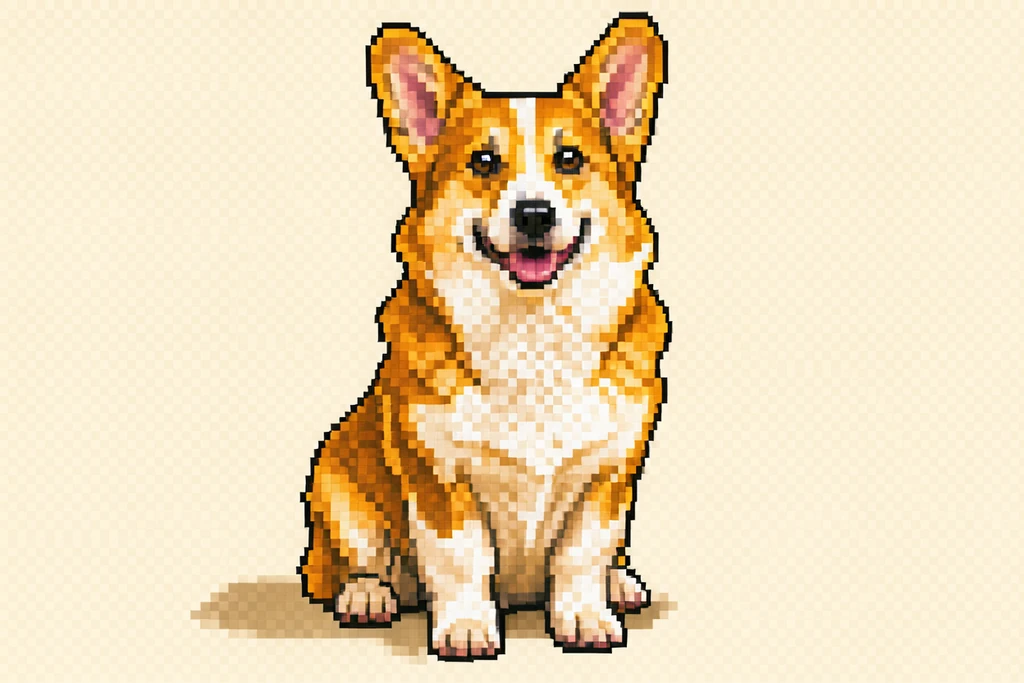
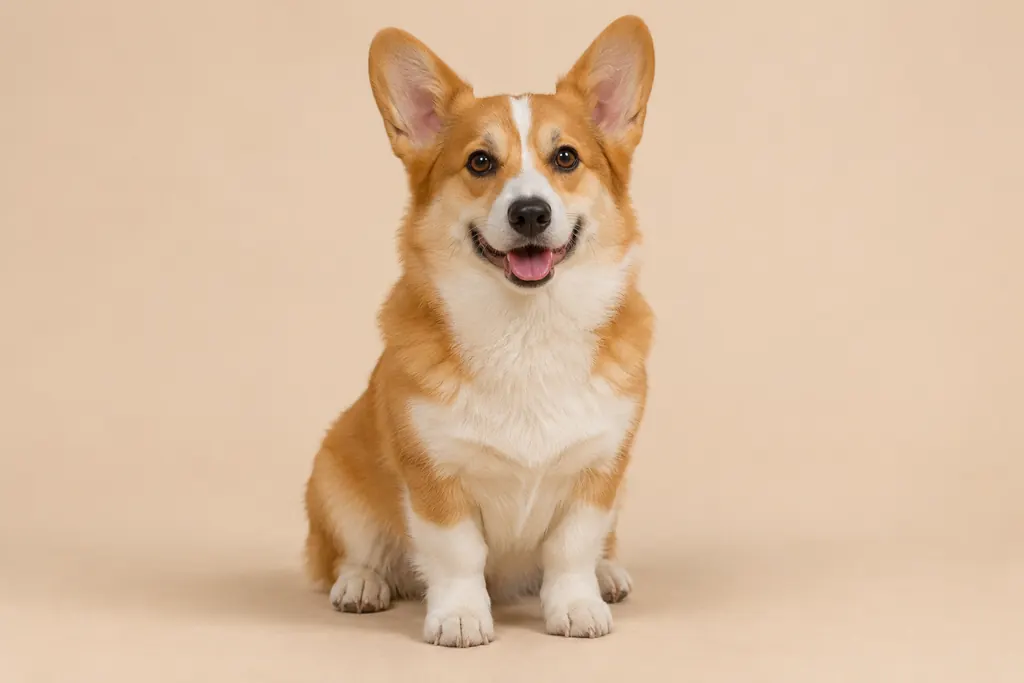
Turn this corgi photo into a retro video game pixel-art character portrait. Keep the sitting pose, large upright ears, orange and white fur markings, happy open mouth, visible paws and centered full-body composition. Simplify the beige background to one flat warm cream color. Use bold square pixels, a consistent coarse pixel grid, a limited 16-color palette, dark stepped outlines and small flat highlight clusters. No smooth gradients, anti-aliasing, blur, added accessories, text, UI or watermark.
The corgi keeps its upright ears, orange-and-white markings and sitting pose. The cream background is part of the image; this example does not have a transparent background.
Room photo to retro game background
Standard · 1K · Generated 2026-11-09
View generation prompt
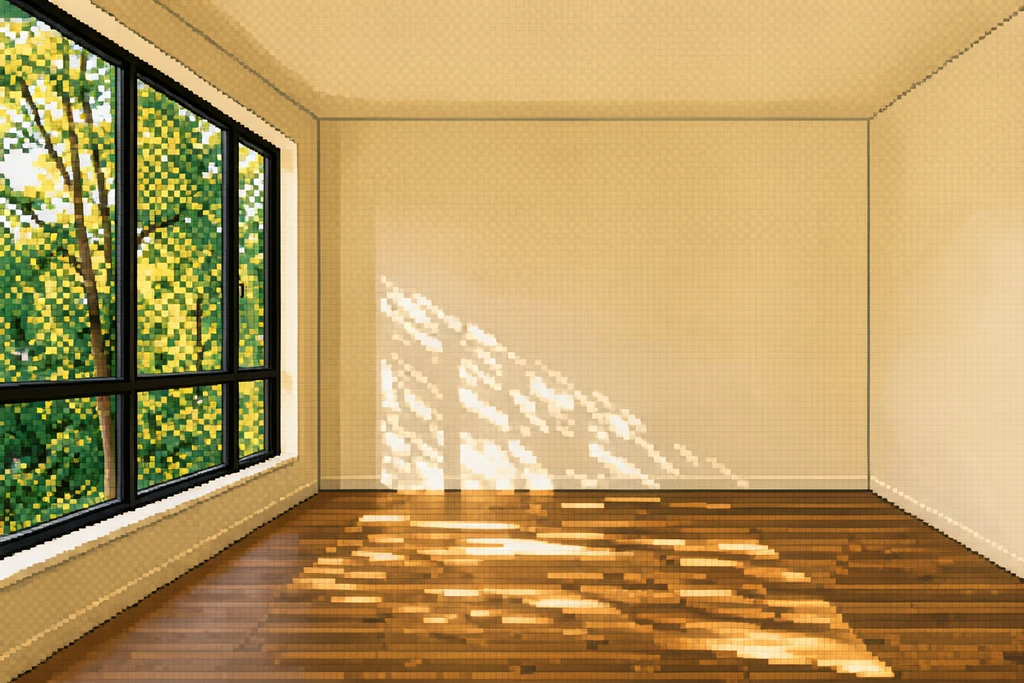
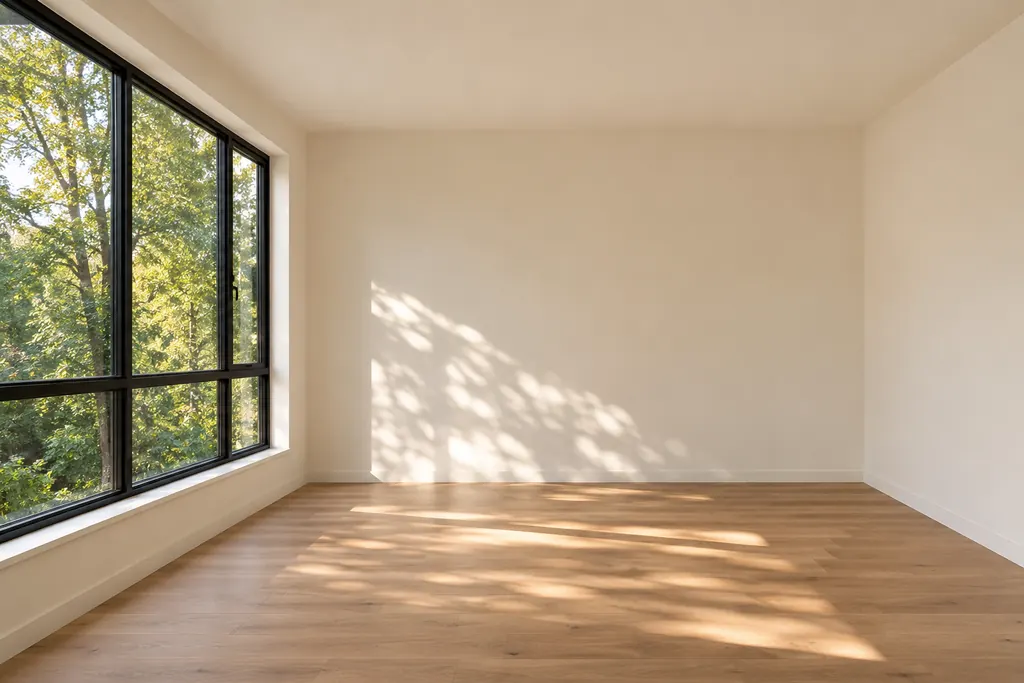
Transform this empty room photo into a retro point-and-click adventure game background in pixel art. Preserve the large black-framed window on the left, cream walls, oak floor, tree shadows, empty space and original perspective. Use a consistent coarse square pixel grid, crisp stair-step edges, a limited warm 24-color palette, flat color clusters and subtle ordered dithering in the shadows. Do not add furniture or change the room layout. No photographic texture, smooth gradients, anti-aliasing, blur, text, UI or watermark.
The window, empty floor and tree shadows become a pixel-style adventure-game scene. The perspective remains similar, while floor and shadow details are reinterpreted.
Free Image to Pixel Art: 3 Images a Day
Each signed-in account gets 3 free Standard generations per day by default, shared with the other image tools. Downloads have no watermark and no subscription is needed. The allowance resets at midnight UTC; the editor shows the current limit and remaining uses. After the free allowance, Standard costs 1 credit per image. Advanced always uses credits, starting at 4 for 1K. All four examples above were made with Standard.
Start editingImage to Pixel Art for Portraits and Avatars
Start with a clear face, pet or object and a simple background. Ask for square pixels, stepped outlines and grouped colors. Name the features to retain, such as a hairstyle, expression or fur pattern; the AI redraws them rather than locking the original pixels.
Convert this image into pixel art with crisp square pixels, stepped outlines and a limited color palette. Preserve the main subject, recognizable features, pose, framing and background composition. Simplify fine textures into flat color clusters with minimal dithering. Avoid smooth gradients, blur, text and watermarks.
Image to 8-Bit Art with a Limited Palette
For an early-console look, ask for a coarser grid and a small palette, such as 16 colors. Landscapes and bold silhouettes are good starting points. The model interprets these as visual directions; it does not enforce an exact color count or a hardware-compatible palette.
Reimagine this image as 8-bit-style pixel art with a coarse square pixel grid, a limited 16-color palette, bold silhouettes, hard stepped edges and sparse dithering. Preserve the main subject and original composition. Use flat color clusters, with no smooth gradients, anti-aliasing, text, UI or watermark.
Image to Retro Game Art for Characters and Scenes
Turn a pet into a character portrait or a room into an adventure-game background. Describe the intended view and what should stay in place. These are single concept images; animation frames, transparent sprites and tile alignment need a separate editing step.
Turn this image into a retro adventure-game scene in pixel art. Keep the subject, pose, camera angle and layout. Use a consistent square pixel grid, dark stepped outlines, a limited warm color palette, flat highlight clusters and subtle dithering in shadows. Do not add objects, text, game UI or a watermark.
How to Convert an Image to Pixel Art Online
Upload a photo
Choose one JPG, PNG or WebP image up to 10 MB, or use an example above. A clear subject and simple background make it easier to read the result at a small size.
Choose a pixel style
Pick Pixel art, 8-bit or Retro game, then edit the prompt to name the features and composition to retain. Choose Standard to use your available free allowance.
Generate, compare and download
Try one free Standard image without signing in, compare it with the original and download the PNG without a watermark. For an exact 32×32 or 64×64 sprite, resize and clean up the result in a pixel editor afterward.
Image to Pixel Art FAQ
Can I convert an image to pixel art for free?
Yes. By default, each signed-in account gets 3 free Standard generations a day, shared across the image tools, with no watermark or subscription. The allowance resets at midnight UTC; the editor shows the actual limit and balance. Standard costs 1 credit per image after that. Advanced always uses credits: 4 for 1K, 8 for 2K and 16 for 4K.
Does this image to pixel art converter work online?
Yes. Upload, prompt, generate, compare and download in your browser, including on a phone. No app or browser extension is required. Generation needs an internet connection; your uploaded image is sent to the AI provider for processing.
Can I use image to pixel art with no sign up?
You can generate and download one Standard image for free without an account. This guest trial is shared with the other image tools and does not reset daily. Sign in for more generations or to use Advanced. Your image and prompt are saved on this device while you sign in and restored when you return to this page.
What is the difference between pixel art, 8-bit and retro game styles?
Pixel art is the broader look of visible square pixels and stepped edges. The 8-bit preset asks for a coarser grid and fewer colors. Retro game adds directions for a character or game scene. These presets guide an AI redraw; they do not guarantee an exact palette, pixel grid or game-ready asset.
Can I export an exact 32×32 or 64×64 sprite?
This editor generates pixel-style PNG images, with Standard at 1K and Advanced at 1K, 2K or 4K. It does not offer a fixed 32×32 or 64×64 canvas, palette indexing, sprite sheets or animation. Resize with nearest-neighbor scaling in a pixel editor, then clean up the grid, colors and transparency as needed.
Which images can I turn into pixel art?
Upload one JPG, PNG or WebP image up to 10 MB. Portraits, pets, objects, landscapes and interiors all work as references. Clear outlines and a simple composition help; tiny text and fine details may change or disappear during the redraw.
Were these before-and-after examples actually generated?
Yes. All four outputs were generated on November 9, 2026 with the website’s Standard model, FLUX 3 Klein, at 1K, using the shown source images and exact prompts. The bundled source images are AI-generated demo images. Results were saved without manual retouching. A new run may produce a different result.